Get the best battery life for your MacBook by changing these settings
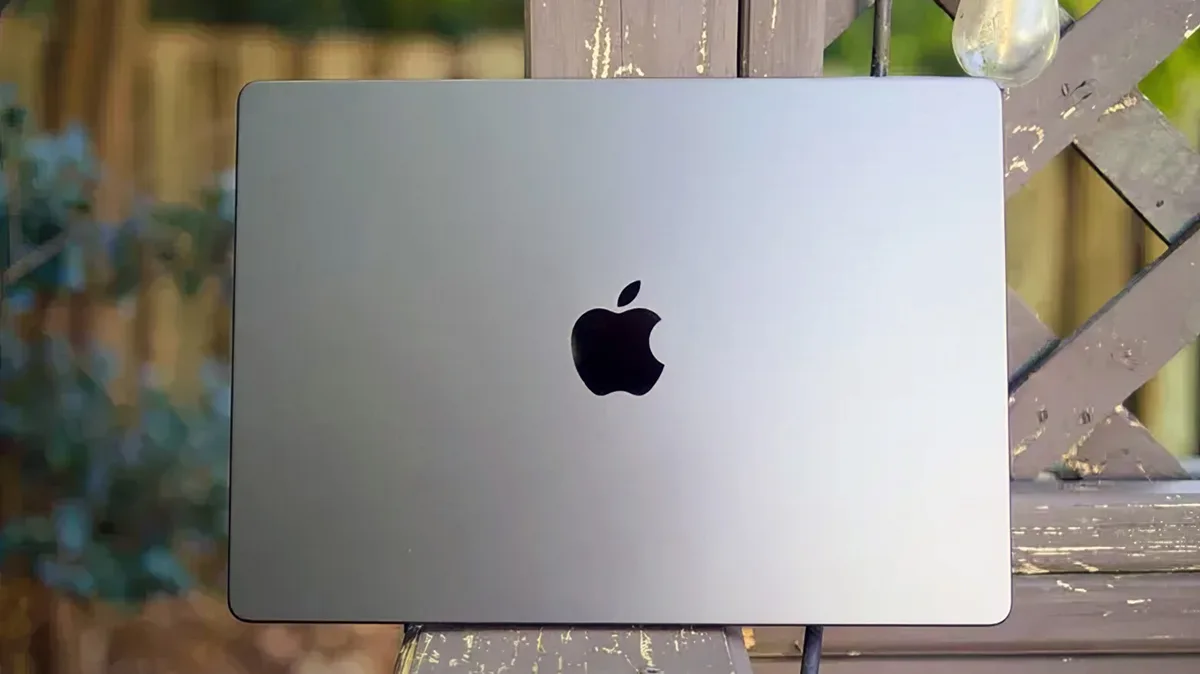
Here are some things you can try to help your battery out both today and for the long haul.
Devindra Hardawar for Engadget MacBooks are quite good at managing their own power consumption. But there may be fringe cases where you want to take matters into your own hands. If that's you, here's how to squeeze the most out of your MacBook's battery life.
Apple Before fiddling with settings, it's a good idea to check the baseline you're working with. Go to System Settings > Battery , and see what it says next to Battery Health . Click the "i" icon next to that to see it as a percentage of its original capacity. If it's 100 percent, then your battery's age isn't affecting its current maximum. (And if it's something like 95 or 90 percent, there isn't yet much to worry about.)
Apple recommends replacing a MacBook's battery if the percentage is below 80 percent. (In fact, you'll see a service warning.) If yours falls that low, then it's time to book a Genius Bar appointment.
To get the most out of the battery in the long run, you can optimize your device's charging. In System Settings > Battery , click the "i" next to Charging , and then choose Optimize Battery Charging . This caps your Mac's charge at 80 percent. That won't change your battery life right now, but it may extend its lifespan.
The menu bar's Battery shortcut is an ideal place to monitor things. Clicking on it will reveal not only the battery's charge, but also its current Energy Mode and any apps using a lot of power. This is also a handy place to override the 80 percent cap when you need a full charge — say, before a long flight. And if you don't see the Battery icon, go to System Settings > Menu Bar , and make sure there's a checkmark next to Battery.
Apple If you had to pick one setting to extend your MacBook's battery life, Apple's Low Power Mode is it. Head to System Settings > Battery , and check the settings under Energy Mode . Chances are, it's already set to Automatic, which is the best option for most people.
If your MacBook has an aged battery — or you just need to stretch things out for a long day — you can switch Energy Mode in the On battery section to Low Power . This leaves it in energy-saving mode even when it has a good charge. And if this setting somehow got changed to High Power on battery, then, well, there's the source of your problem.
Screen brightness is another factor. Go to System Settings > Battery > Options , and make sure Slightly dim the display on battery is turned on.
You don't want the screen to stay on for too long when you're not using your MacBook. Go to System Settings > Lock Screen , and set Turn display off on battery when inactive to a relatively short interval, like five or even two minutes. That way, you don't waste power when you step away from the computer.
If your battery often falls short while streaming video, here's a setting could help. Go to Battery > Options , and turn on Optimize video streaming while on battery . This means HDR video will play in SDR while unplugged, reducing energy use.
5News aggregated this summary from the outlet’s public feed. The full article, with all the context, is on www.engadget.com — the content belongs to Engadget.