How to reset your Roku TV
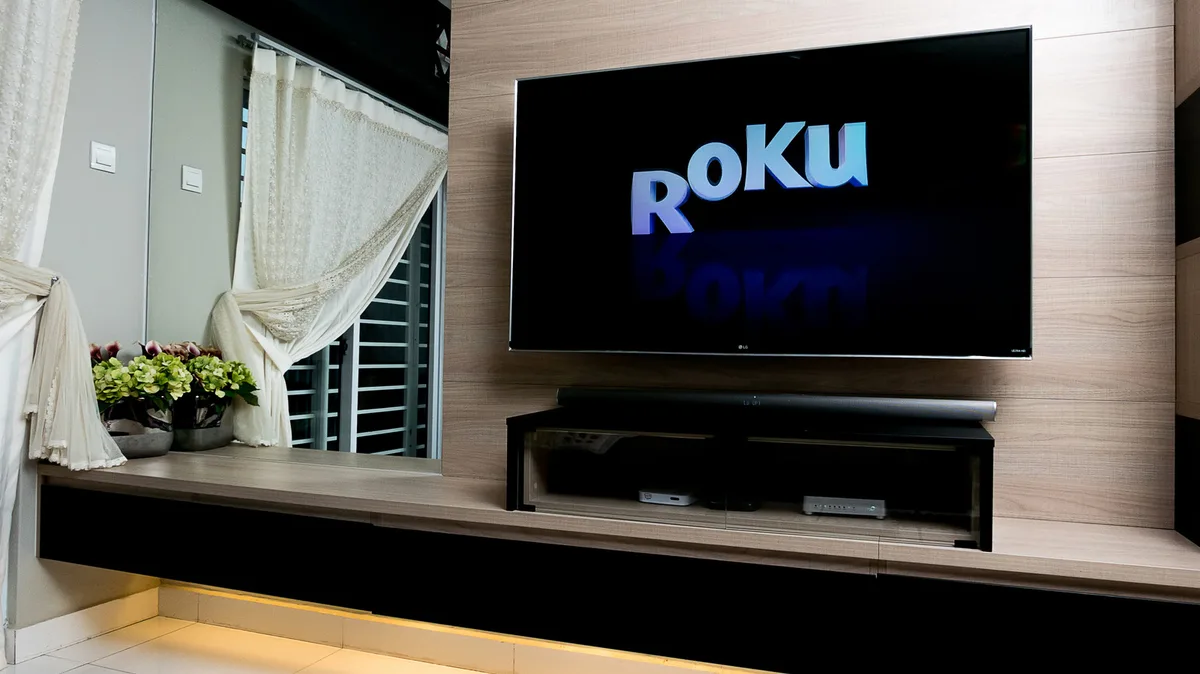
AhmadDanialZulhilmi/Shutterstock Roku TVs can act up for all sorts of everyday reasons, just like any other TV. They may freeze up, stop responding to the remote, disconnect from Wi-Fi or play dead after a software update. This isn't a knock against Roku , just a basic observation that most TVs will eventually try to skip out on you, usually when you're really excited about watching something.
A basic restart is the least disruptive option and usually does the trick. A factory reset, however, is the nuclear option, erasing all of your personal preferences, removing your Roku account and downloaded apps and returning your TV to its original, out-of-the-box state. Fun stuff. Regardless of which extreme you end up with, make sure you have your Roku account email and password, Wi-Fi information and any other login details or PIN you need before the tinkering begins.
For a factory reset, you will definitely need that information to activate the TV and reinstall your streaming service afterward. If the TV is linked to someone else's account, make sure you have their credentials. With that being said, here's how to restart your Roku TV, whether your remote works, the TV has lost internet or it's completely unresponsive.
A soft reset simply restarts the TV without deleting any apps, account info, W-iFi details or saved preferences. Everything remains the same, so this is your best and safest bet before considering a factory reset.
There are Roku TVs, and there are other brand TVs that license Roku's software. Not every Roku settings menu will look the same. For this scenario, some Roku TVs may not have a separate Power menu. If that's the case, go to Settings > System > System restart instead.
If the Roku interface is frozen but the TV still has power, simply unplug the TV from the wall, wait for 10 seconds then plug it back in. Restarts often solve minor software issues, a sluggish interface or connection problems in general, without resorting to harsher measures.
This will completely wipe your TV, essentially preparing it for a new owner or taking you back to scratch, as if you just hauled it out of the box. It erases your personal settings, unlinks the TV from the associated Roku account and removes installed channels and account information. You will have to go through the guided setup process all over again before you can get back to streaming.
Follow the on-screen instructions, including entering the code shown on your TV.
Your Roku TV will restart when the reset is finished. From there, connect it to your Wi-Fi, sign into or create a Roku account and reinstall your favorite apps. If you have an antenna connected, you will also have to run a new broadcast channel scan.
You can also choose to reset your network settings or audio/picture settings using this same process. Resetting your network will erase your W-iFi password and router connections so you can start with a new one. Resetting audio/picture settings is exactly what it sounds like, taking you back to the TV's original audio and picture settings.
Don't use this step just because an app is misbehaving on you.
5News aggregated this summary from the outlet’s public feed. The full article, with all the context, is on www.engadget.com — the content belongs to Engadget.